This Website Runs in Memory

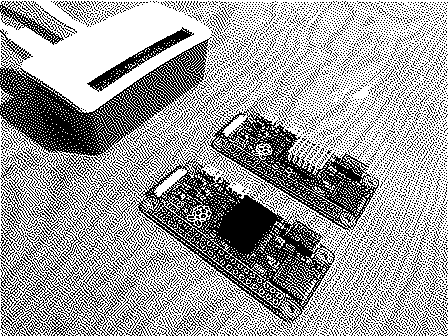
Greetings! This website is being served to you from a Raspberry Pi Zero v1.3 running Alpine Linux. The best part? It’s diskless and running entirely from memory!

This is even more impressive considering the Pi Zero only has 512MB of total memory, ~40MB of which is tied up running the OS. Plus, RAM is so abundant and cheap these days that we can… Oh, right.

There are some cavaets, but we’ll explore those along the way!

Before we start, let’s make a grocery list of all the required hardware items we need:

The Hardware

Additional hardware that will only be needed temporarily for the initial install of Alpine:

Preparing Our microSD Card

The following was performed on macOS. Using a different operating system will require additional steps. Note that we will be extracting the tar content directly on to our microSD card, so make sure you download the Alpine image ending with tar.gz.

Plug in SD card and find the disk with diskutil list. For our example the SD card will be located at /dev/disk4.

Next, wipe and re-partition the card as FAT32:

diskutil eraseDisk FAT32 ALPINE MBRFormat /dev/disk4

Extract the Alpine tarball onto the card:

tar xzf alpine-rpi-*.tar.gz -C /Volumes/ALPINE

Clean up any macOS junk then eject it:

find /Volumes/ALPINE -name '._*' -delete
rm -rf /Volumes/ALPINE/.Spotlight-V100
rm -rf /Volumes/ALPINE/.fseventsd
rm -rf /Volumes/ALPINE/.Trashes

diskutil eject /dev/disk4

Now pop the microSD card into your Pi Zero. Be sure to have your Pi connected to a monitor and keyboard, then boot it on.

Alpine Linux in Diskless Mode

Once it boots into the login screen, enter root to get dropped into the live instance. Normally, you would run setup-alpine and go through the standard install steps. But not us. We need to setup a couple of things first!

Run the following in the terminal:

setup-lbu mmcblk0p1
mkdir -p /media/mmcblk0p1/cache
setup-apkcache /media/mmcblk0p1/cache
lbu commit -d

Note: mmcblk0p1 might differ on your machine, but is most likely the same (microSD card). Always double check before blindly pasting!

This sets up lbu (Alpine local backup) to help us manage our diskless mode that we plan to install shortly. In the future, whenever you add/remove packages or update your website files you will need to run lbu commit -d. This writes your changes to your microSD card, so that Alpine know what to pull into memory on future reboots. This is very important!

With that done, run setup-alpine and follow the standard options for installing Alpine. When prompted to use openssh I would recommend choosing dropbear instead. It’s significantly lighter than the default. After all, we are trying to maximize efficiency out of this weak, little device!

The only real part to watch out for is when you’re asked which “disk” to use near the end of the install process. Make sure you select none (which is actually diskless).

After the install completes, run lbu commit -d one last time and reboot. If everything comes back up and your changes have persisted then congrats! Your Pi Zero is booting into memory!

Optimizing Alpine Linux

The Software

Terminating TLS

Backups